
Tutorial: How to use InShot to edit videos
InShot is one of the best video and photo editing applications available for free. You can use it for both basic and advanced editing on Android as well as iPhone and iPad. Regarding video editing, InShot allows you to trim, split, merge videos, change the aspect ratio, and much more. If you are new to InShot, this tutorial will guide you on how to use the app's various functions to edit videos. Let's dive in!

Add Photos or Videos to the Video
You can create a video by merging individual video clips, photos, or both.
- Open the InShot app on your phone. The home screen will appear, where you will see three options: Video, Photo, and Collage. The Video option allows you to create a video from videos or photos. Use the Photo option if you want to edit photos. The last option is self-explanatory. Since we are interested in editing videos, tap on Video.
 Tip The clock icon on the Video option means you have pending drafts.
 - After tapping the Video tab, press the New button to create or edit a new video. If you have already edited a video in InShot, it will appear here as a draft. Tap on a draft to edit it.

- Select the clips you want in the video on the screen that appears. You will find the Video, Photo, and All tabs. Tap on photos and videos to select them. If you want to create a video from scratch, tap on the Blank option. Finally, tap the green checkmark icon at the bottom.
 Tip To create a video solely from photos, like a slideshow, tap the Photo tab and select the photos. The video editor screen will open, where you can start editing your video.
Import More Photos or Videos
After adding the initial clips, you can easily add more clips if you missed something. On the video editor screen, tap the + (Add) icon located on the left side of the timeline.

Rearrange Clips
Clips are arranged on the timeline in the order they were added to the video. But you can change their position at any time. Simply tap and hold any video clip on the timeline to enter reorder mode. Then, drag the clip thumbnail to a new position.

Zoom on the Timeline
Use the pinch in and out gesture on the video timeline to zoom in and out of clip previews. This gives you a better idea of what you are working with.

Delete Clip
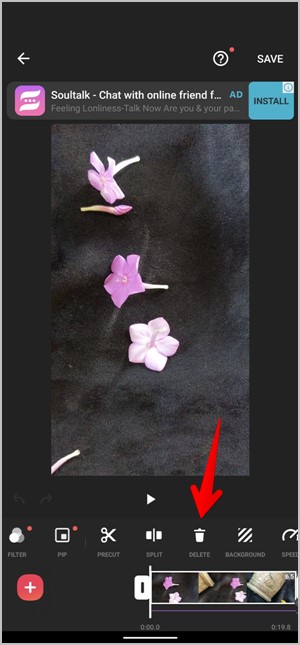
To delete an individual clip from the video, tap on it to select it. You will see a white border around it. Then, tap the Delete tool in the toolbar at the bottom.
Apply Effect or Edit to All Video Clips
Generally, when you are editing clips, any effect or change you make will apply to that particular clip if you press the single checkmark icon. But you can apply the change to all clips by pressing the double checkmark icon instead of the single one.
Change Video Size
Many times, you want to convert a horizontal video into a vertical one or vice versa, or post a video you uploaded to Instagram Story on YouTube. In these cases, the aspect ratio of the videos is different. So, instead of recreating the videos from scratch, you should change their Canvas size. It's not an ideal solution, as your video might have white borders or the video might be cropped. However, you can give it a try.
In the InShot video editor, tap the Canvas option and select the desired aspect ratio from the available options. Use the pinch gesture to zoom in and out of the video. Tap the single checkmark icon to apply the new video size to the current clip or tap the double checkmark icon to apply it to all clips.

Change Background
If your video has a white background after changing the aspect ratio, you can fill it with color or add a blur effect. To do this, tap the Background tool on the toolbar on Android. And, on iPhone, you will find the Background option inside the Canvas tool itself. Choose the color or effect you prefer from the available options.

Crop Video
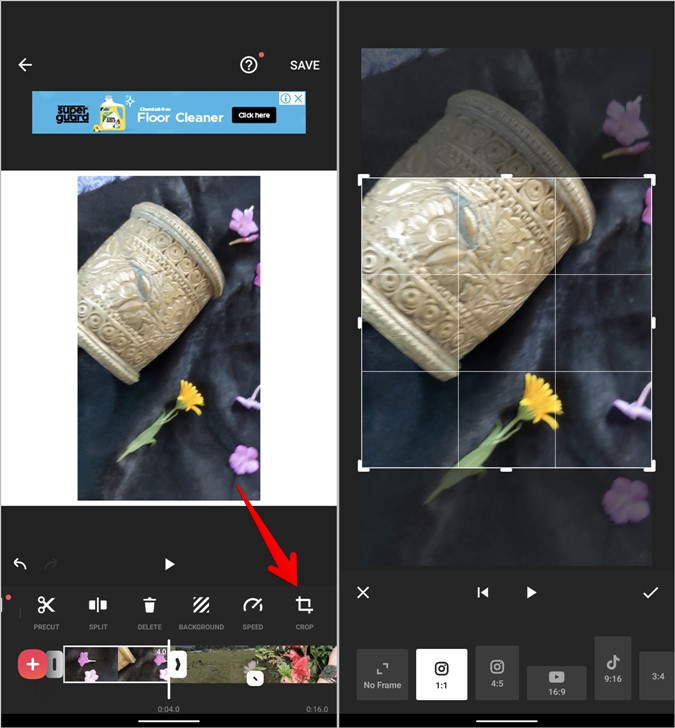
In case you don't want the video to have a background, you can crop the video based on the desired size. To do this, tap the Crop tool in the toolbar. Choose a size from the options and move the selection box to fit the desired area inside it. As expected, you will lose some parts of the video.
Add Audio or Music to Video
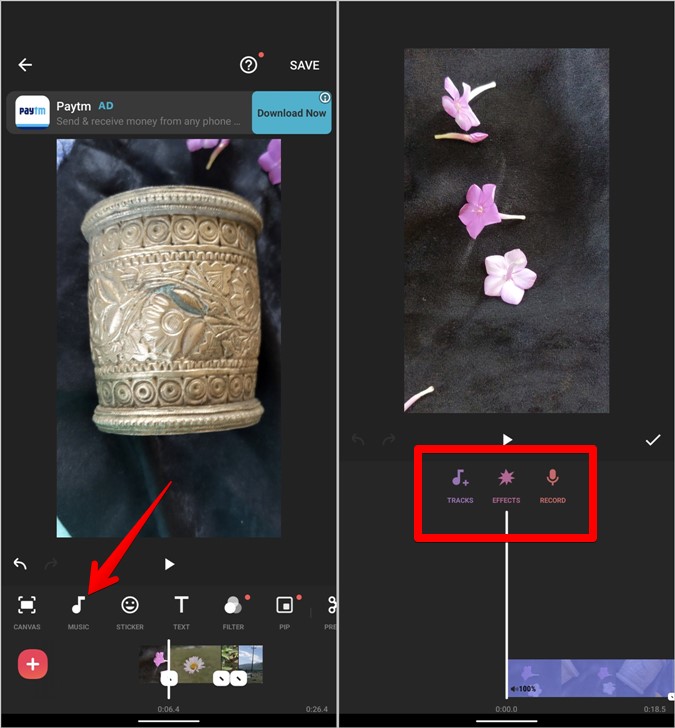
InShot offers several ways to add audio to your video. You can choose music from InShot's built-in music library, add a track from your own local folder, or record something. Tap the Music tool on the toolbar to go to the audio screen. Tap the desired option from Tracks, Effects, or Record and add the sound to your video.
If you have any doubts, you can check this guide to adding music in InShot. You will be able to see the detailed process of how it is done.
Add Audio from a Video
InShot also allows you to extract audio from any video on your phone and use it in the current video. Let's say you have an Instagram Reel video on your phone whose audio you want to use in the video you are editing. Go to the Tracks option inside Music and tap on the Extract audio from video option. Select the video file.

Extract Audio from Current Video
You can also extract audio from the video you are editing. This allows you to edit the audio separately from the video. You can change its duration and volume, or duplicate and split it.
To do this, go to the Music tool and tap on the video clip at the bottom. Tap on the Extract Audio option. You will go to the Music screen, where you will see a separate audio layer. Use the options at the top to edit it.

Remove Background Voice from Video
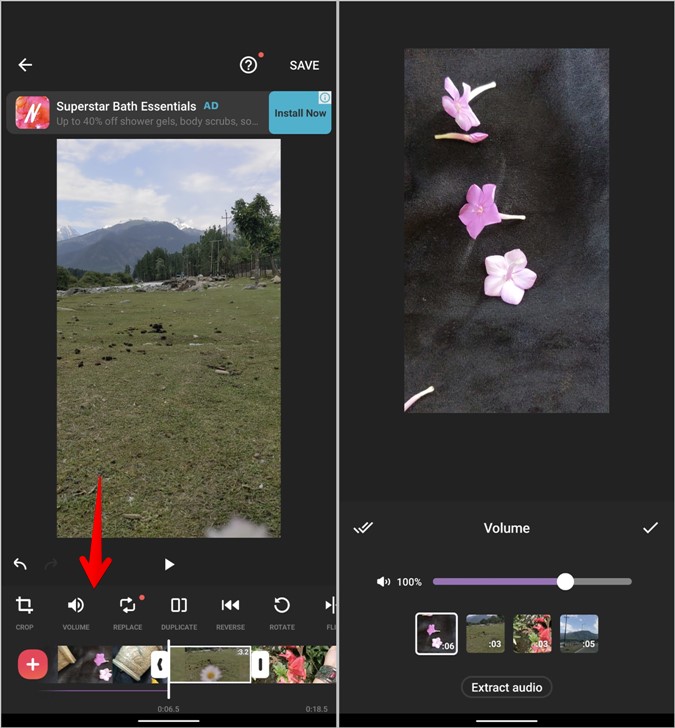
To remove existing audio in your video, go to the Volume tool on the toolbar and lower the volume to the minimum. Tap the double checkmark icon to remove audio from all clips. You can also change the volume or remove it completely from the Music tool.
Add Sticker
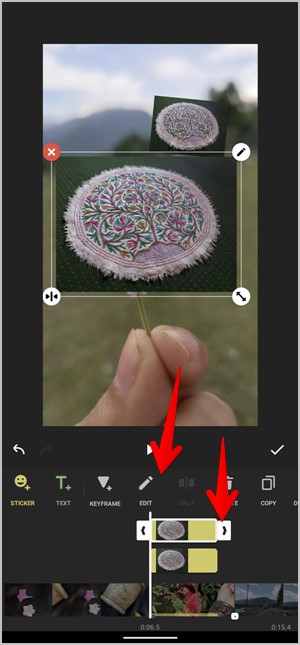
Use the Sticker tool to add emojis, animated stickers, and GIFs to your video. You can use the Sticker tool to add a PNG image, like a watermark to your video. To do this, press the Sticker tool followed by the Gallery icon. Press the Add button and select the image.

Once added, tap on the sticker on the timeline and adjust its duration, or press the Edit button to add transition effects.
Customize Text
Press the Text tool to add text to your video. You can customize its color, style, opacity, font, and alignment. All these options are available on the text editing screen.
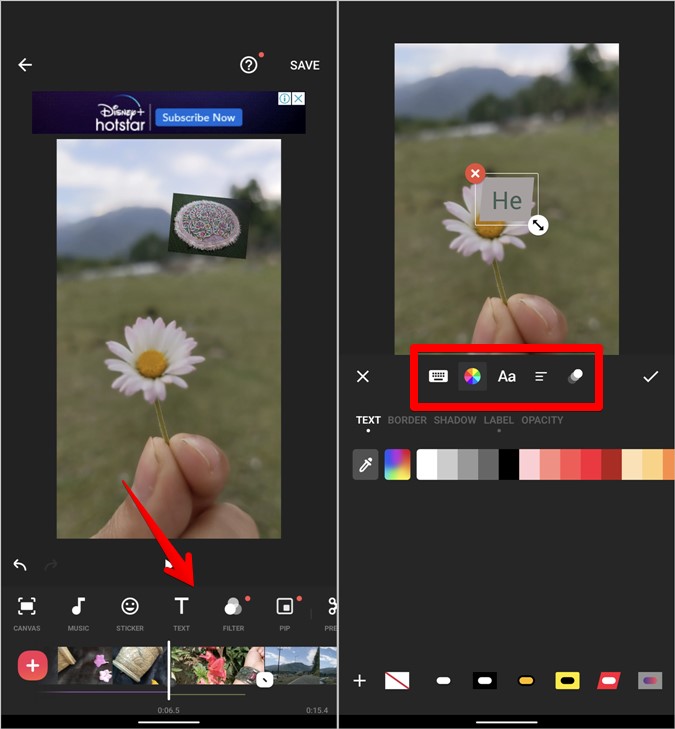
You can even add transition effects to text. To do this, press the last icon on the text editing toolbar. Select the transition effect. Tap on the in and out options to choose the desired effect for the text entry and exit.

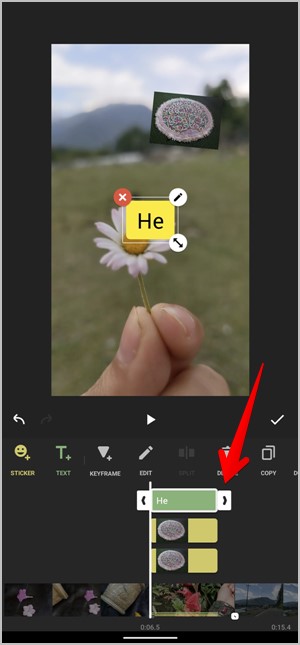
Once added, change the text duration using its preview on the timeline by dragging the end edges.
Add Filter and Effects
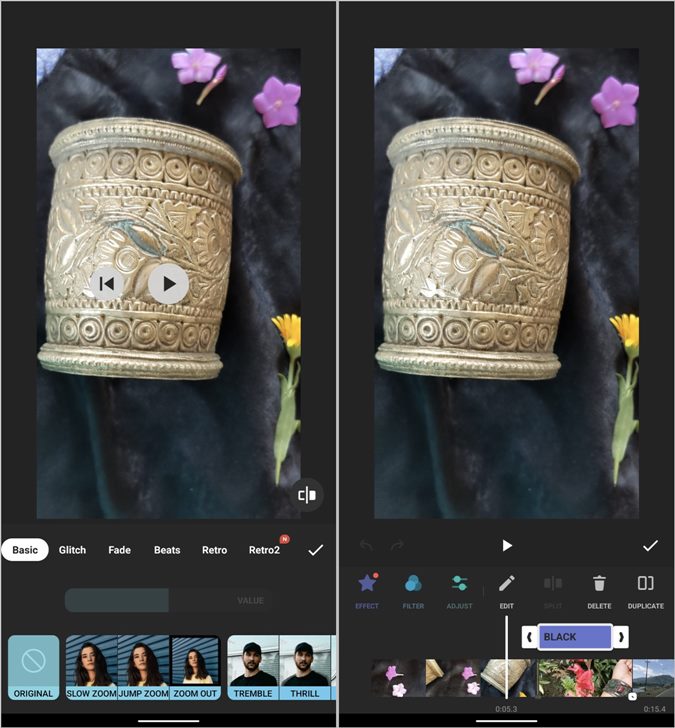
Tap the Filter tool to manually adjust brightness, contrast, saturation, and other things. You can also apply preset filters or add effects like Glitch, Zoom, Fade, etc. After adding an effect, tap on it on the timeline to adjust its duration.
Add Transition
On the video timeline, tap the clock icon between video clips to open the Transition screen. Select the desired transition effect.

If you want a more detailed tutorial on adding transitions in InShot, click on the link above.
Add Multiple Video Clips in One Frame
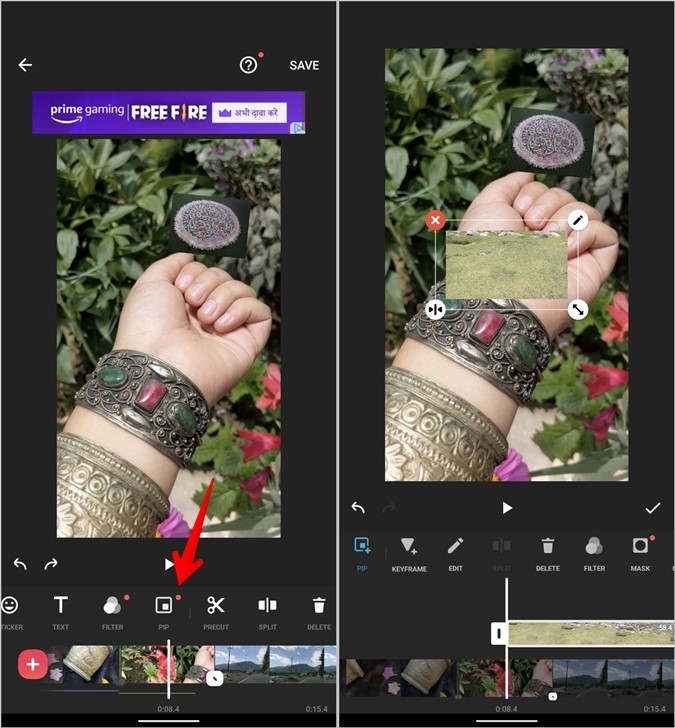
With the PIP tool, you can play multiple clips in a single frame, like a video collage. Tap the PIP tool and add the desired clips to layer them.
Trim, Cut, and Split Video
Tap on the Precut (Trim) tool to trim, cut, or split the video.
- The Trim tool allows you to cut unwanted parts of the video from the endpoints. Drag the end edges to trim the video.
- The Cut tool removes the middle part of the video, merging the remaining parts. Drag the green selection boxes to keep the parts you need in the video.
- The Split tool allows you to divide the video into smaller parts where each part acts as an individual clip. Keep the green marker at the position where you want to split the video.

Rotate, Flip, and Speed Up Video
As expected, use these tools to rotate the video, flip it, or increase/decrease the video speed.
Tip To add slow motion to a part of the video, split the part and change its speed.Freeze Frame
The Freeze tool allows you to freeze a frame for the selected duration. Basically, the video will focus on the selected frame. Keep the pointer on the frame you want to freeze and press the Freeze tool.

Remove Watermark
If you see the InShot watermark while editing the video, tap on it and watch the video ad to remove it without the pro version.
Save Video
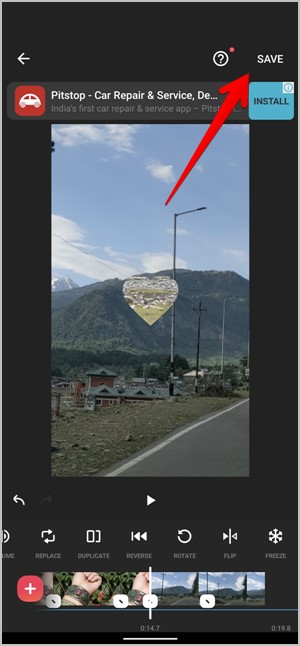
When you are done editing the video, tap the Save button at the top to export the video. Choose the desired resolution and frame rate, and press the Save button. The video will be saved to your phone's gallery.
Edit Videos for Social Media
I hope this guide helped you create and edit videos in the InShot app. Once you master it, you can use InShot to edit videos for social media, such as Instagram Reels, YouTube videos, or create videos with photos. The possibilities are endless.
Leave a Reply